Guide
Notifications
ABM Warranty supports local macOS notifications for devices in Needs Attention and Expiring Soon states. These alerts are designed to keep coverage risk visible between full dashboard reviews, while still respecting tenant context, cadence settings, and muted device controls.
Notification behavior is local-first and policy-driven. The app and helper runtime follow the same suppression and cadence model, so what you configure in settings is consistently applied to background and foreground evaluation paths.
Where Notifications Are Configured
Notification controls are managed in ABM Warranty settings. From there you can enable or disable notifications and set how frequently alerts are eligible to reappear. Cadence options are tuned for practical operations: daily, every three days, or weekly.
Configuration changes take effect against the shared notification model used by the app and helper. That keeps behavior predictable when users switch between interactive use and background delivery.
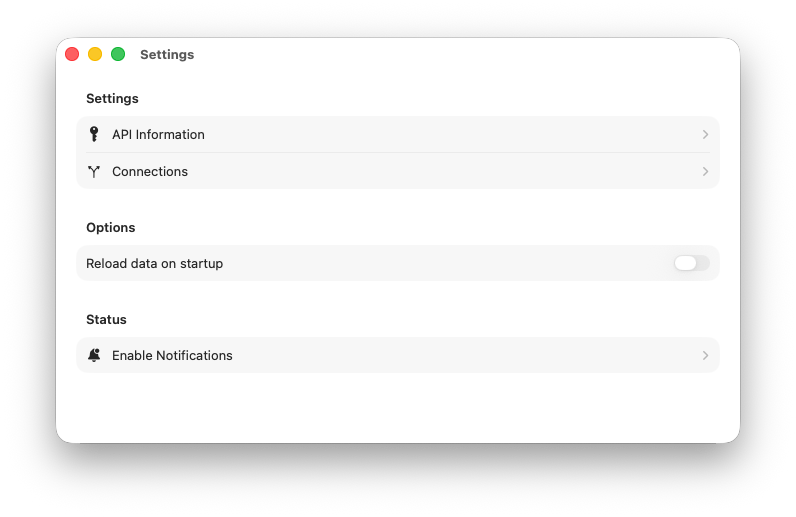
Open the Notifications section in Settings to access alert controls and delivery behavior.
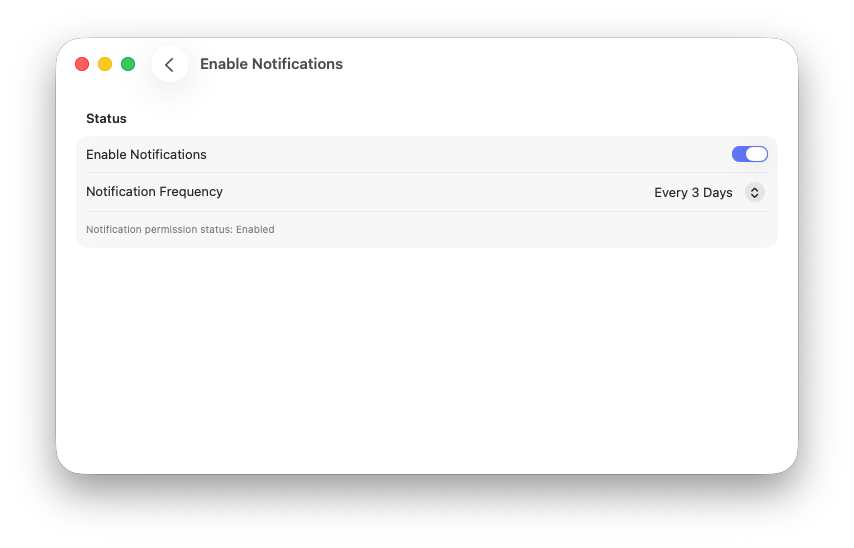
Turn notifications on and select an interval that matches how often you want follow-up alerts.
What Happens After Notifications Are Enabled
After notifications are turned on in app settings, macOS may present system permission banners tied to background activity and notification delivery. This is expected behavior because ABM Warranty uses a helper runtime for continuity when the app is closed, and macOS surfaces that runtime behavior explicitly.
You may see prompts indicating that ABM Warranty can run in the background and that notifications can include alerts and badges. These prompts are part of the normal permission flow and should be reviewed so notification delivery can work as configured.
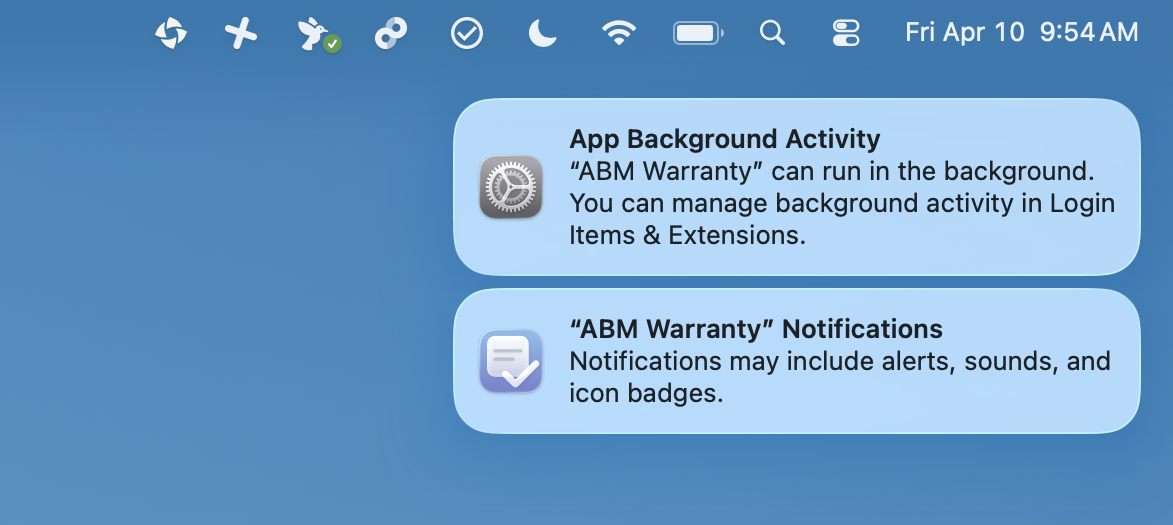
Review the background activity notice so the helper can continue notification checks while the app is not open.
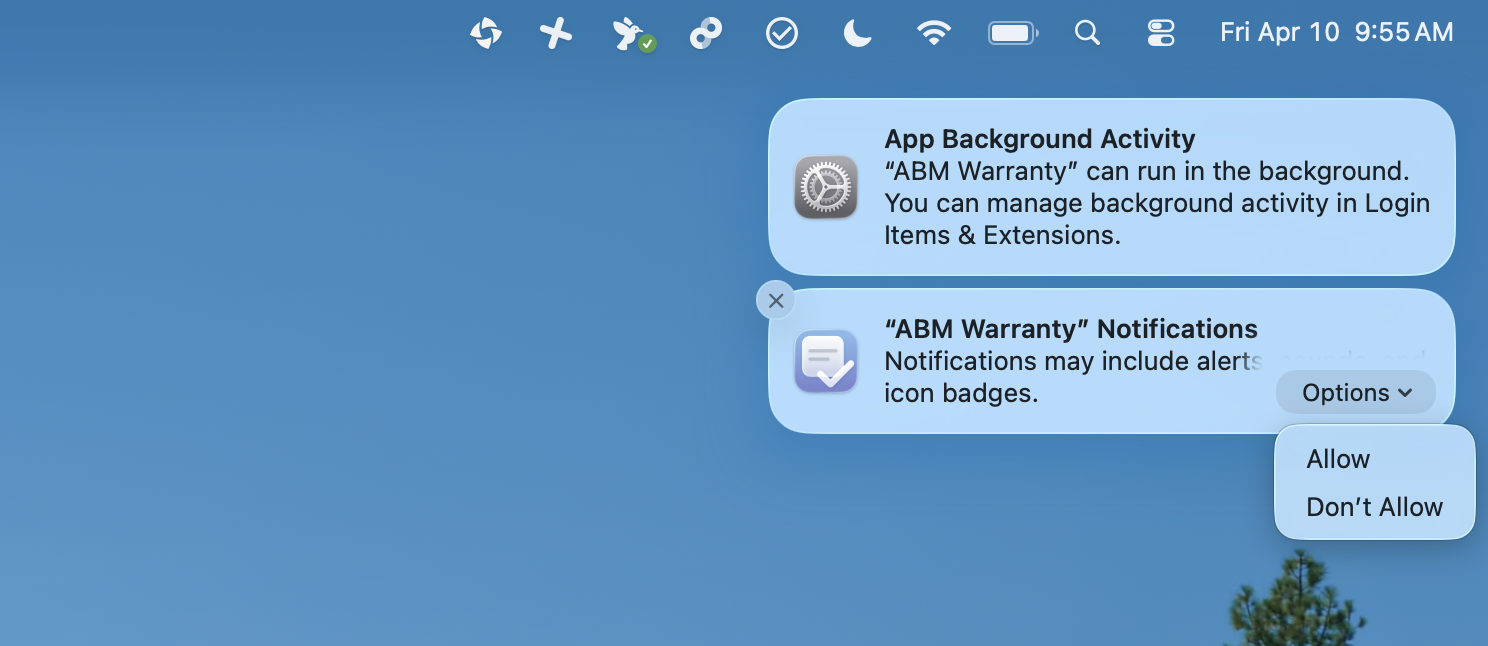
Use the system alert prompt to grant notification permission so banners and badges can be delivered.
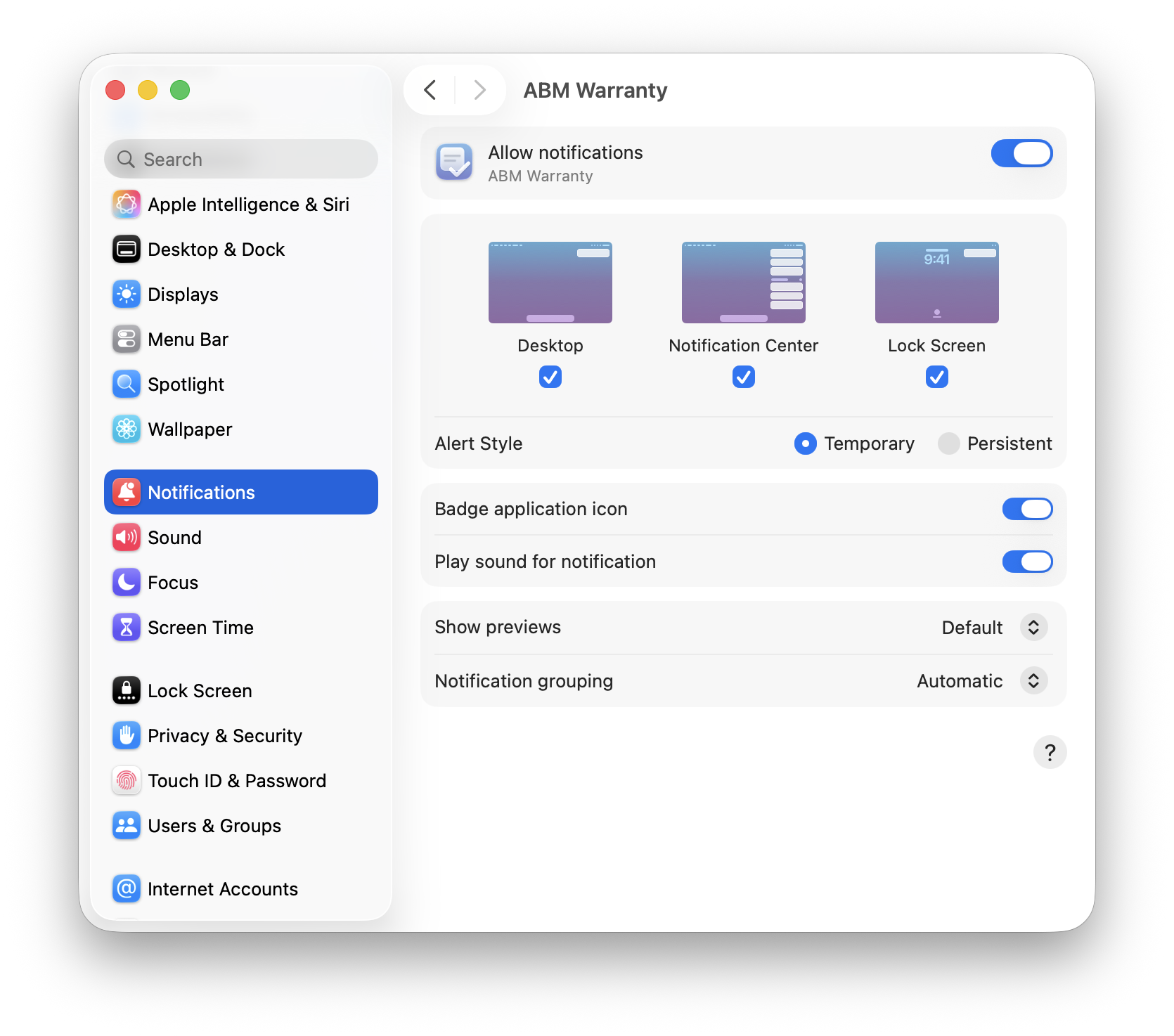
If you need to confirm or adjust notification permissions later, open System Settings and manage ABM Warranty under Notifications. This is where you control alert style, sound behavior, and badge visibility at the macOS level.
Dashboard and Filters
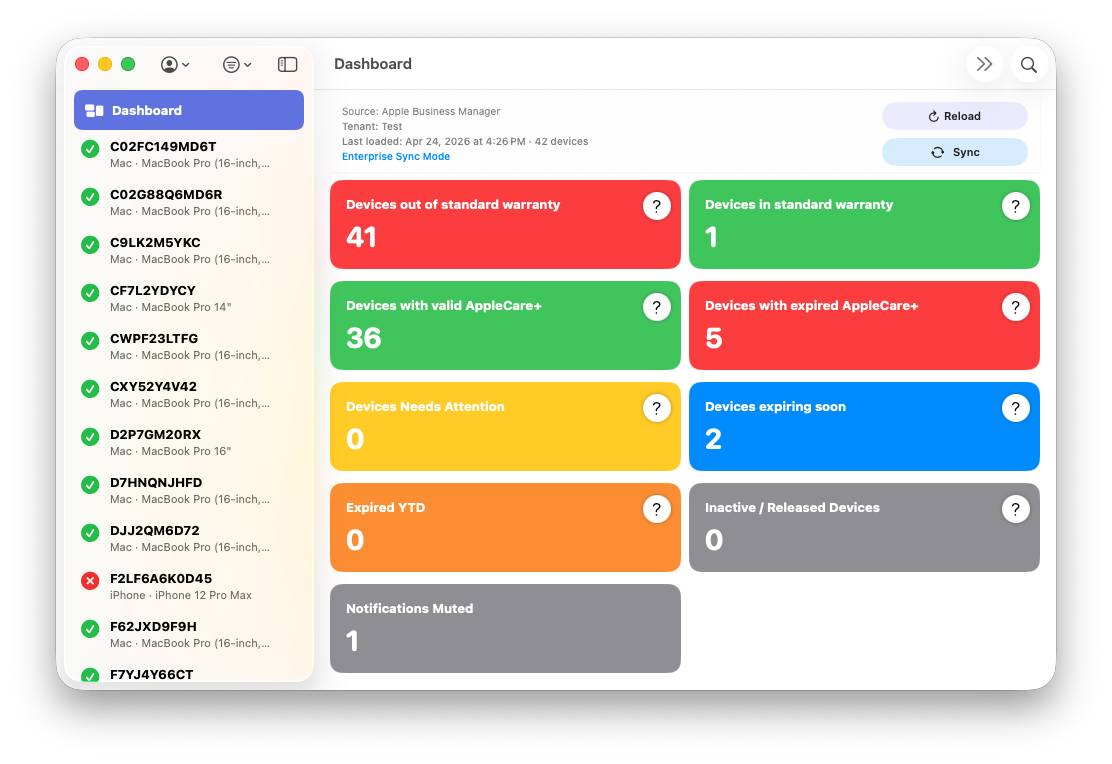
The dashboard includes a Notifications Muted card, and the sidebar filter menu includes the same muted view so teams can inspect suppressed records quickly. Both entry points lead to the same filtered result set for the active tenant.
This makes muted-state auditing straightforward: you can move from summary metrics to the exact device list in one step, verify suppression intent, and resume alerting only where needed.
Device-Level Suppression
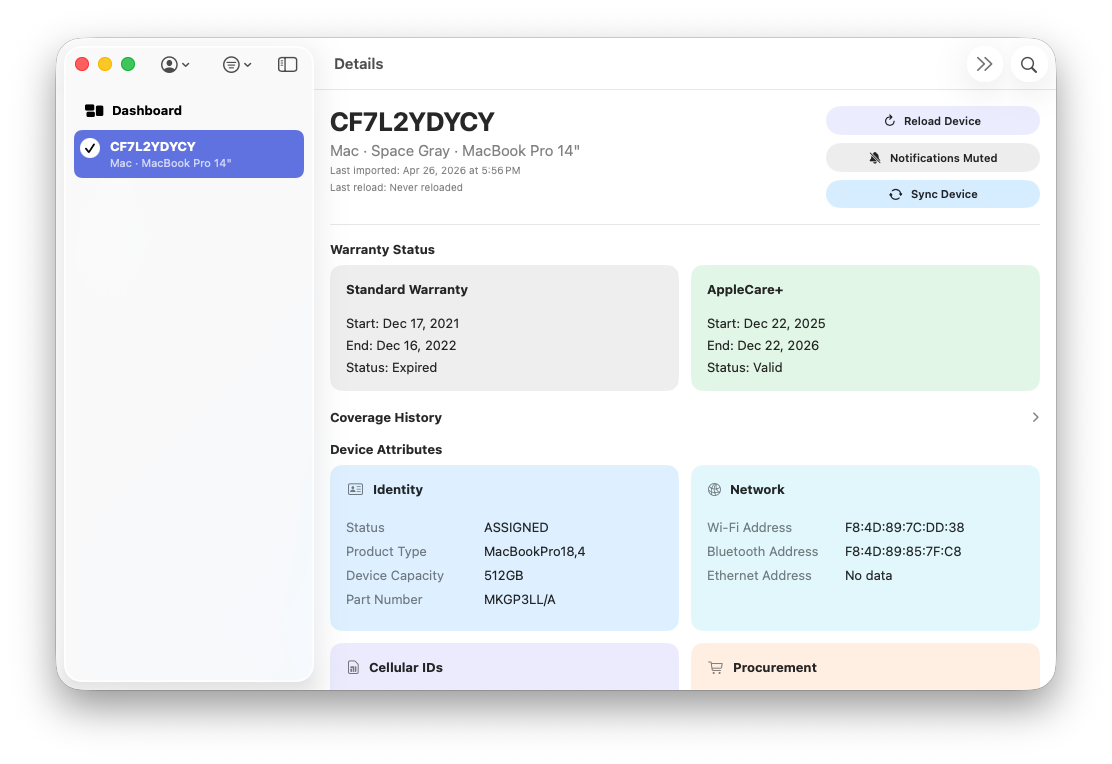
In device detail, the bell control is used to mute or unmute notifications for an individual device. This lets you suppress noise for known or acknowledged cases without globally disabling notifications for the tenant.
Suppression state is stored per tenant and honored across runtime paths. When a device is muted, that status is respected by both the app and helper evaluation flow until the device is explicitly re-enabled.
Runtime Components
Notification processing is shared across three components. The main app handles candidate evaluation while the UI is active, the login-item helper continues evaluation when the app is closed, and the CLI provides status and diagnostics for verification and troubleshooting.
Together, these components maintain continuity across normal desktop workflows. Whether the app is open or closed, notification policy remains consistent with your configured cadence and suppression rules.
CLI Shortcuts
abm-warranty notifications status
abm-warranty notifications run-once
abm-warranty notifications fire-test
abm-warranty notifications fire-test -v
Use these commands to confirm current configuration, run a non-mutating diagnostic pass, and verify local delivery behavior end-to-end.