Guide
Keychain Authorization
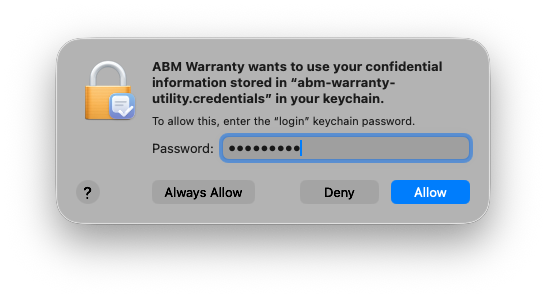
ABM Warranty stores credential metadata in macOS Keychain and reads those records during startup, credential validation, and managed-credential reconciliation. Because these values are protected by system security policy, macOS may request user confirmation before allowing ABM Warranty to access a saved keychain item.
This prompt is expected behavior from Keychain Access controls, not an in-app ABM Warranty dialog. The goal is to let macOS confirm that the currently running signed app binary is authorized to read protected credential material.
How ABM Warranty Uses Keychain
The app uses the generic-password keychain class and stores credentials under the service name abm-warranty-utility.credentials, with one keychain item per credential. Each entry is tied to its credential identifier so tenancy and credential selection remain consistent across imports and runtime checks.
ABM Warranty also supports legacy compatibility by optionally reading the older abm-warranty-utility account record when needed. During normal operation, the app uses standard Security framework APIs for reads, adds, updates, and deletes, which keeps storage behavior aligned with native macOS protections.
Why Prompts Can Reappear
You may see keychain prompts again after restart, logout/login, app reinstall, or app updates that change trust context. You can also see repeated prompts when switching between differently signed builds, such as local debug binaries and distribution builds.
In these cases, macOS is re-evaluating whether the active binary should continue to access previously stored items. This is usually temporary and environment-specific, but frequent prompts can indicate that multiple build variants are alternating or that keychain access control needs cleanup.
Allow, Always Allow, and Deny
When prompted, Allow grants a single access attempt and may prompt again later, while Always Allow grants ongoing access for the same trusted app identity. Choosing Deny blocks the current access attempt, which can prevent ABM Warranty from loading credentials for token exchange and imports.
If your environment is stable and the app identity is expected, selecting Always Allow reduces repeated prompts and keeps credential reads smooth. If you are validating different builds or signatures, using one-time Allow can be safer until the final trusted app path is confirmed.
Expected and Unexpected Prompt Patterns
Occasional prompts after sign-in, restart, or app upgrades are considered normal and typically resolve after approval. These events can temporarily lock or revalidate access to login keychain entries until the app is trusted again in the current runtime session.
Unexpected behavior is repeated prompting on nearly every launch while using the same app binary and stable keychain records. When that happens, treat it as a local trust or ACL consistency issue and verify that stale or duplicate app builds are not competing for access.
Security and Sandboxing
Keychain authorization dialogs are generated by macOS, and ABM Warranty does not bypass or suppress those checks. Credential private key content remains protected by system keychain controls and standard file permissions, even when prompts appear during normal access attempts.
Authorization should only be granted when the running app identity matches your expected signed build. Keeping a single trusted install path and avoiding mixed build variants helps preserve consistent access-control behavior over time.
Troubleshooting and Diagnostics
If prompts persist, confirm you are launching one intended build path and that helper/login-item components come from the same build set. In Keychain Access, inspect entries under abm-warranty-utility.credentials and remove stale app copies that may be causing trust churn.
For runtime validation, use these commands to confirm notification/helper state and code-signing identity across your environment. Run diagnostics from the same system context where prompts are occurring so results reflect the active execution path.
abm-warranty notifications status
security find-identity -v -p codesigning
codesign -dv "/Applications/ABM Warranty.app"