Guide
Desktop Widgets
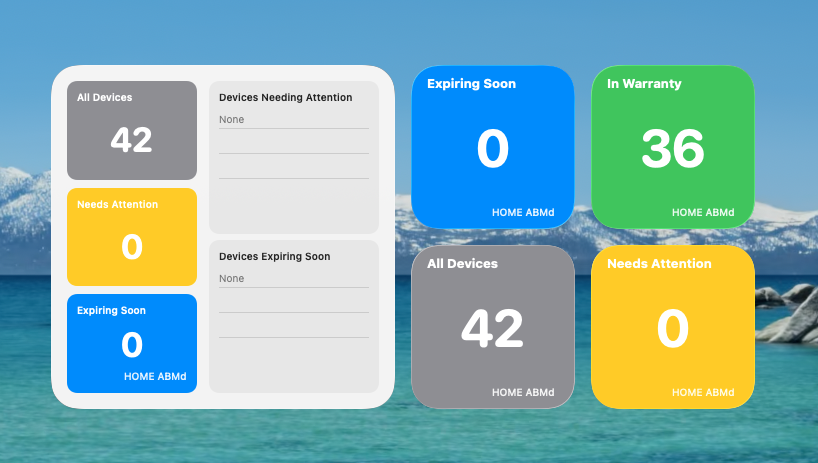
ABM Warranty includes desktop widgets in small, medium, and large sizes so key warranty signals remain visible without opening the full app. Widgets are scoped to your active tenant context and are designed to surface high-signal metrics quickly during normal desktop workflows.
The widget surface reflects the same core data model used in the app, so the numbers shown on desktop stay aligned with your current dashboard and tenant state. This keeps desktop visibility useful for quick checks while preserving consistency with in-app reporting.
Adding Desktop Widgets
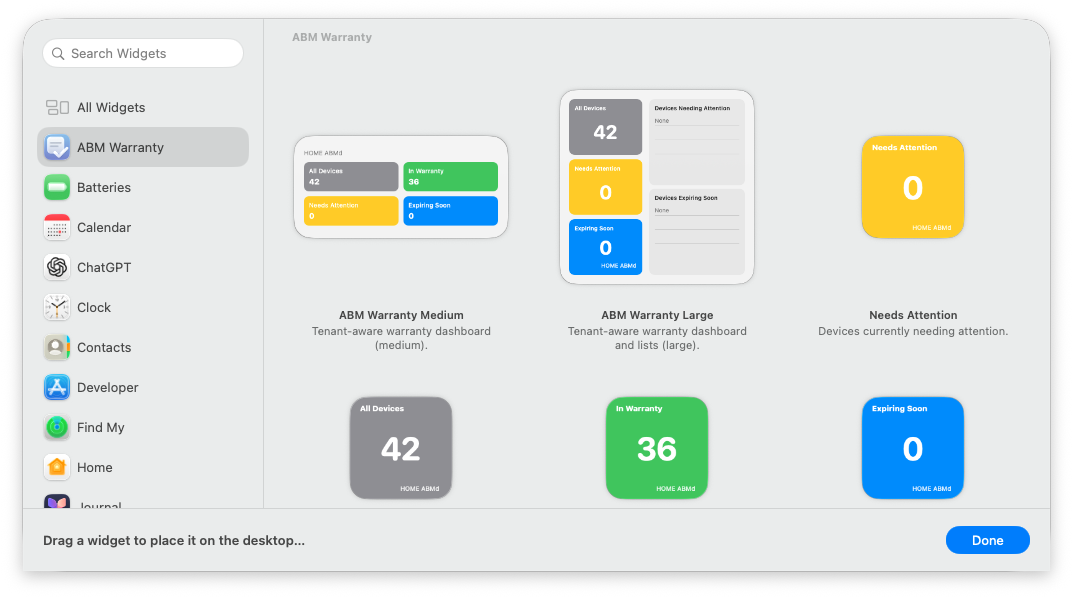
To add widgets, open macOS widget editing from the desktop, search for ABM Warranty, then place the size that matches your workflow. Small widgets focus on single-signal visibility, medium widgets emphasize at-a-glance coverage metrics, and large widgets provide broader context with additional attention-oriented detail.
Once placed, widgets continue updating from the latest shared snapshot and reflect tenant changes after app refresh and context updates. If no snapshot data is available for the active tenant, the widget view indicates that reload data is required before normal metrics can render.
How Widget Data Is Read
Widget data is read from shared app-group storage rather than performing direct API calls from the widget surface. This keeps widget updates lightweight while ensuring output remains tied to validated app refresh behavior.
When tenant context changes, snapshot state is updated and widgets reflect that context on the next refresh cycle. This design keeps desktop widgets responsive while preserving clear data ownership in the main ABM Warranty import and processing path.